Microsoft Teams widgets – Teams Audio Devices Usage
Definition
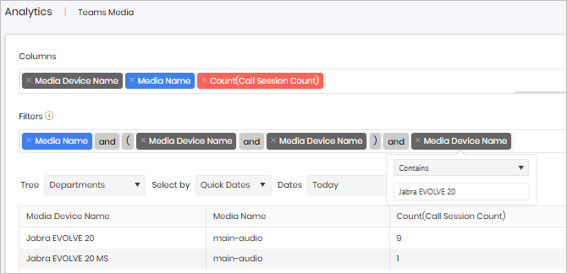
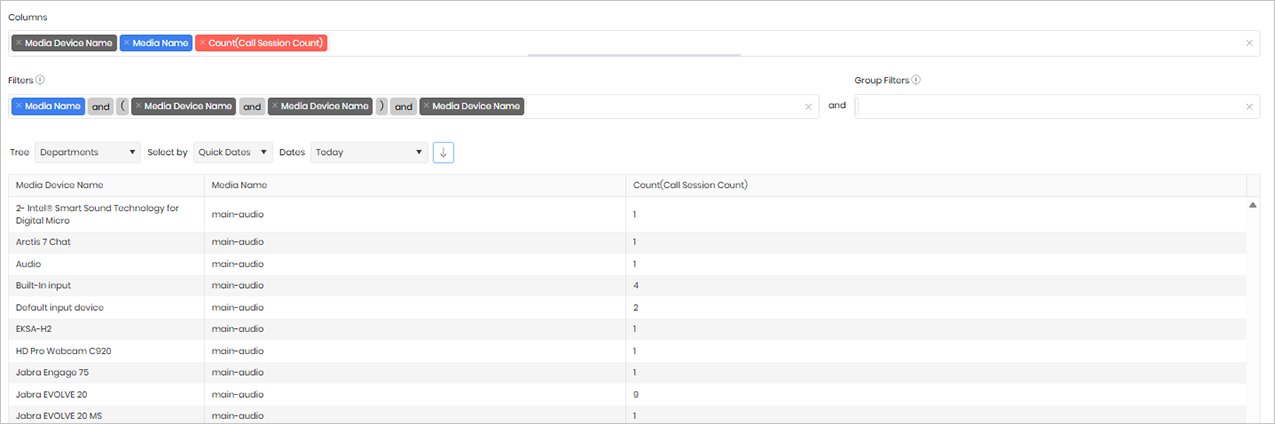
The Teams Audio Devices Usage widget provides a summary of the audio devices used during Microsoft Teams calls, ranked from the most commonly used device to the least. This enables organisations to understand which headsets, speakerphones, microphones, and other audio devices are being used across the business. The widget can be used to identify whether users are using approved devices, monitor device adoption, and help troubleshoot call quality issues by highlighting the hardware being used on the network.
Output list
- Media Device Name
- Media Name
- Count (Call Session Count)
Sample output
Widget text
{"ViewGuid":"65de8464-ff48-4a1e-909d-7a8469950cf3","Definition":{"ColumnAggregates":[{"ColumnId":"mediaDevice_MediaDeviceName","IsNew":true,"Type":-2,"Alias":"mediaDevice_MediaDeviceName_74ab0e8d79582771","Label":"Media Device Name"},{"ColumnId":"media_MediaName","IsNew":true,"Type":-3,"IsExpanded":false,"Alias":"media_MediaName_7451227e1af6f46d","Label":"Media Name"},{"ColumnId":"CallSessionCount","IsNew":true,"Type":-1,"AggregateType":"Count","Alias":"CallSessionCount_0a64b7a8ff3ccce6","Label":"Count(Call Session Count)"}],"PreFilters":[{"ColumnId":"media_MediaName","FilterColumnAlias":"media_MediaId","IsNew":true,"Values":["1"],"Names":["main-audio"],"Type":3,"Alias":"mediaId_7b80b5cb299607a4","Label":"Media Name","IncludeAll":false},{"Symbol":"&"},{"Symbol":"("},{"ColumnId":"mediaDevice_MediaDeviceName","FilterColumnAlias":null,"IsNew":true,"Operator":"IsNotBlank","Value":"","Type":0,"Alias":"mediaDevice_MediaDeviceName_4be12792b02d9a29","Label":"Media Device Name"},{"Symbol":"&"},{"ColumnId":"mediaDevice_MediaDeviceName","FilterColumnAlias":null,"IsNew":true,"Operator":"DoesNotContain","Value":"vid:","Type":0,"Alias":"mediaDevice_MediaDeviceName_ec55aefaaab00a91","Label":"Media Device Name"},{"Symbol":")"},{"Symbol":"&"},{"ColumnId":"mediaDevice_MediaDeviceName","FilterColumnAlias":null,"IsNew":true,"Operator":"Contains","Value":"","Type":0,"Alias":"mediaDevice_MediaDeviceName_7344bf3d86fe218a","Label":"Media Device Name"}],"PreGroupFilters":[],"Parameters":{"SelectedTreeId":"1","DateSelectionMethod":"UseQuickDates","QuickDate":{"Type":"2","FromLocal":"08/09/2026 00:00:00","ToLocal":"08/09/2026 23:59:59"}},"GridSettings":"{\"columns\":[{\"index\":0,\"field\":\"mediaDevice_MediaDeviceName_74ab0e8d79582771\",\"width\":274.578,\"hidden\":false},{\"index\":1,\"field\":\"media_MediaName_7451227e1af6f46d\",\"width\":594.109,\"hidden\":false},{\"index\":2,\"field\":\"CallSessionCount_0a64b7a8ff3ccce6\",\"width\":2174.56,\"hidden\":false}],\"sortField\":null,\"sortDir\":null,\"pageSize\":50}"},"DefinitionVersion":1}
Modifications
You can use the Last Media Device Name filter to search for a specific device model or description. For example, if you want to identify users who are using Jabra Evolve 20 headsets, click on the Last Media Device Name filter and enter the device name you wish to search for.
The remaining columns can typically be left at their default settings. However, if you require more detailed analysis, you can add additional columns such as Media Device Driver, Media Device Type, or other device-related attributes. For more information see the go.tiger.io/microsoft-teams-analytics as this contains additional fields.